Using the Bluetooth module
Hardware settings
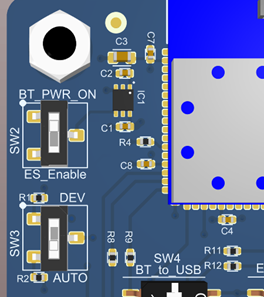
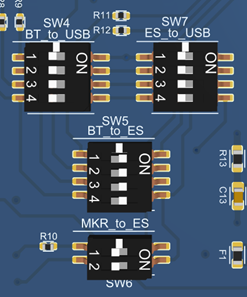
To allow for Bluetooth communication with the EmStat4M module, make sure to set all switches on SW4, SW6 and SW7 OFF and all dipswitches on SW5 ON. Set SW2 to BT_PWR_ON (up) and SW3 to AUTO (down):
When connecting via Bluetooth using SPP, a serial COM port for Bluetooth communications will become available on the host side (e.g. Windows) when connecting to the Bluetooth device. The Bluetooth name has the format “PS-xxxx” where xxxx is the last digits of the Bluetooth MAC address. (This MAC address can be found on the sticker of the Bluetooth module between the QR code and “CE” logo)
Connecting PSTrace
PSTrace has to search for Bluetooth devices before it can connect to them. Click the Bluetooth icon under “Connection” to perform this action. When it is finished it should list the device in the dropdown list. The name has the format “PS-xxxx” where xxxx is the last digits of the Bluetooth MAC address. (This MAC address can be found on the sticker of the Bluetooth module between the QR-code and “CE” logo).
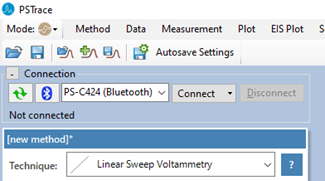
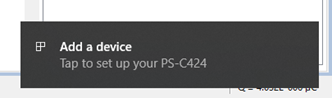
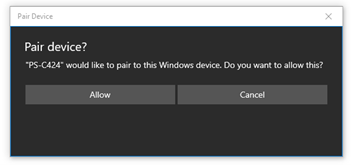
The first time PSTrace connects with an new device Windows 10 and 11 show a pop-up message in the right bottom corner of the screen. Click on this message and allow Windows to pair the device.
Programming the Laird BT900 module
Before programming the BT900 module make sure to set the hardware switches as follows: Set SW2 to the BT_PWR_ON position to enable the BT900 module power supply. Set SW3 to the DEV position to enter the programming mode of the BT900 module. The BT900 can be programmed via USB by setting all switches of SW4 (BT_to_USB) to ON and set all switches OFF for SW7 (ES_to_USB) and SW5 (BT_to_ES).
Using the Dual Mode script from PalmSens
PalmSens has developed a script for using the Bluetooth module in Dual Mode. This means that it will identify itself as a classic Serial Port Profile (SPP) Bluetooth device and as a Bluetooth 4.0 or Bluetooth LE (BLE) device. The host (PC, mobile or other Bluetooth enabled device) can choose to connect via SPP or BLE. The latter allows for connecting with an iOS app for example. The BLE settings used in our Dual Mode script are based on the VSP Application Note from Laird, which can be found here: BT900 Series Bluetooth Module Documentation
To easily update your device to the dual mode smartBASIC we have developed a simple tool to update your device. The tool works with:
-
EmStat Pico development board.
-
Sensit BT (SNS and SPE)
-
EmStat GO
The tool works simply by selecting which device you have connected to your PC via USB and clicking the “UPLOAD SCRIPT”-button. You can download the tool here: www.palmsens.com/ps-laird-bt900-upgrade-tool
Using your own custom smartBASIC script
In case you would like to use your own smartBASIC script for the Laird BT900 module, you can set the device in “Bridge Mode” using the Programmer tool as described in the previous section. When the device is in Bridge Mode you can directly access the BT900 module via a COM port. You can download the tools to update the BT900 module using UwTerminalX from the Laird website. See for more information: BT900 Series Bluetooth Module Documentation
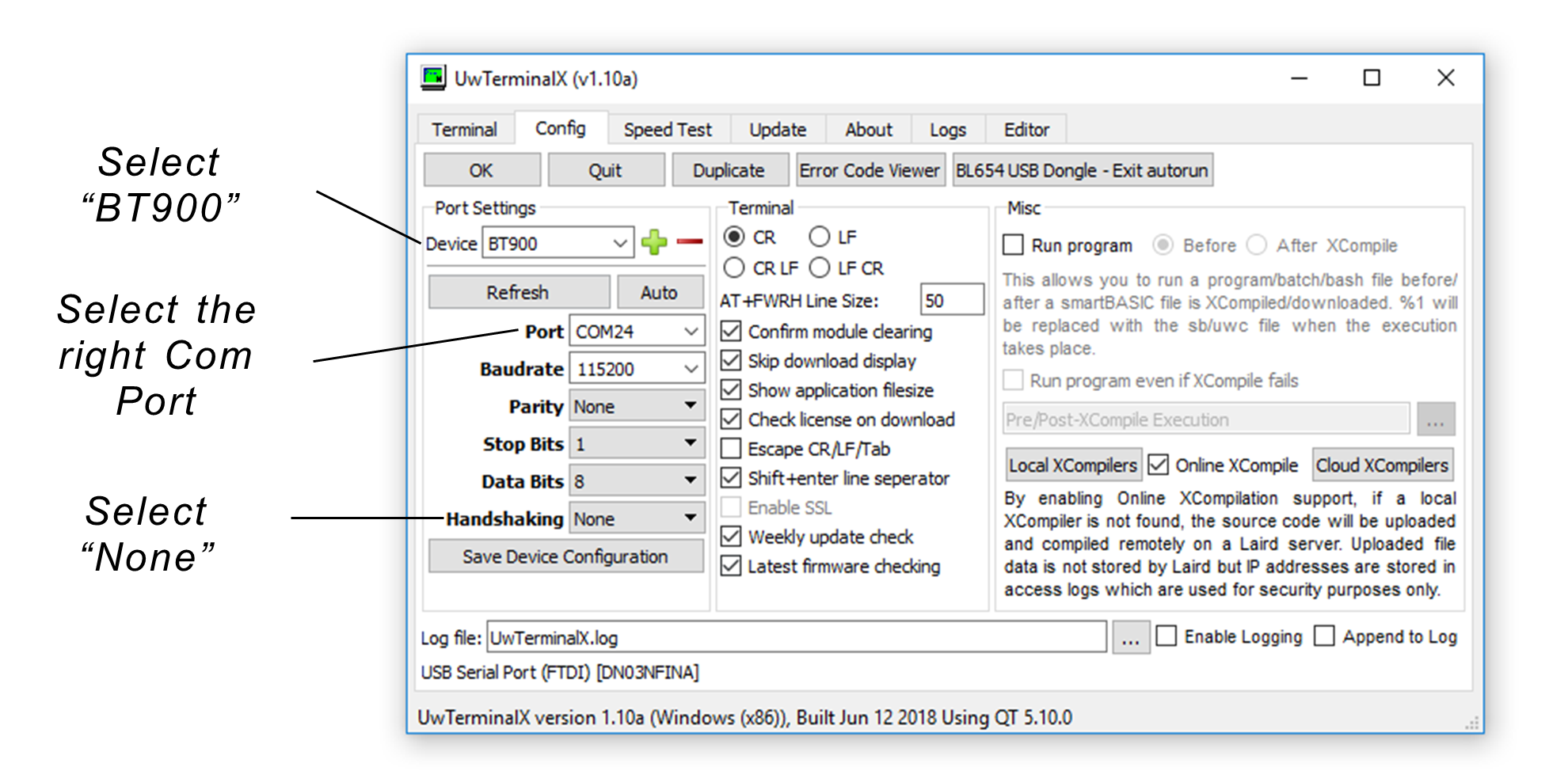
When using UwTerminalX from Laird, please make sure to set the following settings: